Chat GPT for Data Analysis: Part 2

In the previous blog post we took a look at Chat GPT and it’s capabilities to perform simple analysis on data. For this next article, we’re going to look at using Chat GPT for some more advanced analysis. As we walk through this attempt, all resources used and analysis created will be made available.

The Data Set

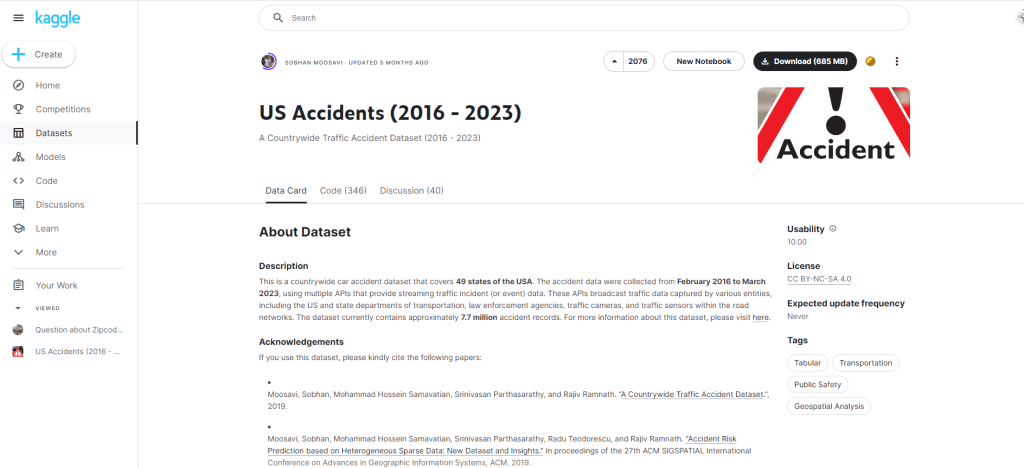
For this analysis we’ll be using a dataset from Kaggle, titled US Accidents (2016-2023) which provides us with a nationwide view of all traffic accidents reported between 2016-2023. All citations can be found at the bottom of this article.

The dataset is a total of 3GB, but for the purpose of this analysis we will be focusing on Texas only data for ease of use.

Hypothesis Being Tested

  • 2020 will have a lower total volume of accidents due to Covid.
  • Higher volumes of crashes during rush hour in both urban and rural parts of the state.

Hypothesis 1: 2020 will have a lower total volume of accidents due to Covid.

To start of with the descriptive analysis, we begin by loading the data into a Tableau dashboard. The reason for this is that the size of the data is ~3GB, which is too big to handle with straight excel analysis. Plugging into Tableau, we are able to build visuals and a way to extract the data for analysis as necessary.

Texas accident data visualized

Tableau and Excel

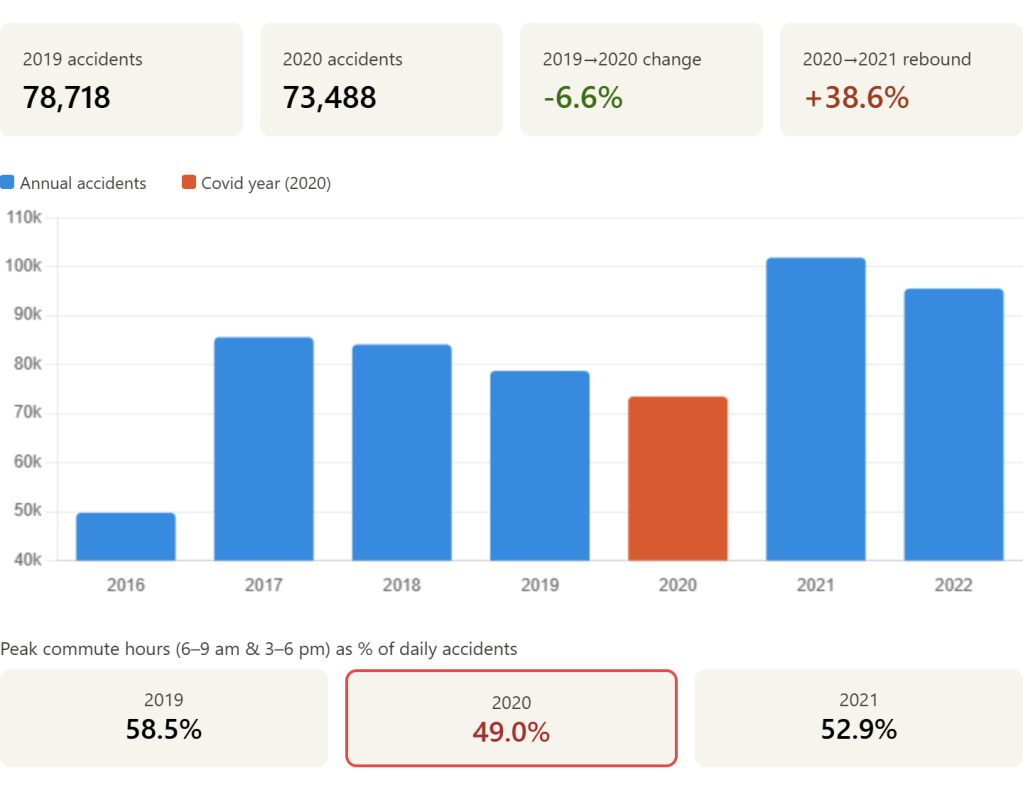
Looking at the dashboard, we can see 2020 is the third lowest in accidents. This raises the question, why do 2016 and 2023 have such low rates of accidents? What we’ll be looking for is any large gaps/inconsistencies in the data.

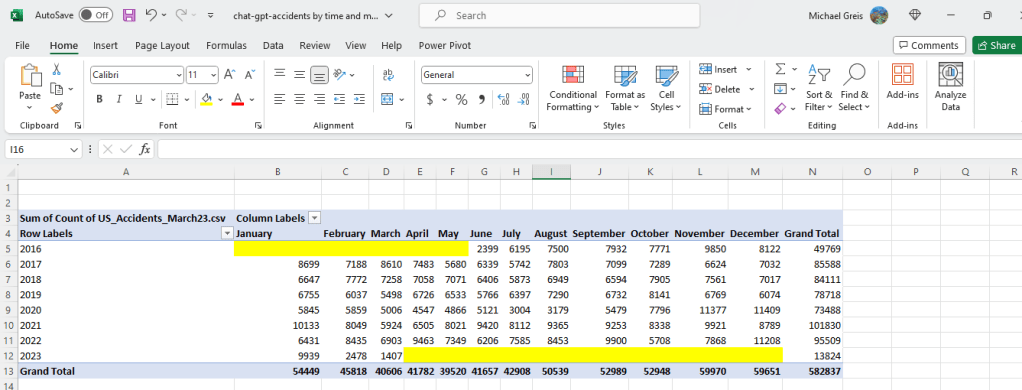
My hunch is that there is partial reporting in both 2023 and 2016. To prove this, I’ll pop Tableau back open to add the data into the dashboard for analysis. Below you can see the data with month added in, and the assumption was correct. There is partial data in 2016 and 2023.

2016 and 2023 have partial data

This shows that 2020 did in fact have lower volumes of accidents. Looking at the months when Covid lockdowns were occurring (March-July), we can see that accidents rates were lower than previous and later years suggesting in part that this was due to Covid. In order to prove causation we would have to go a lot more in depth, which is beyond what I’m looking to do right now.

Chat GPT

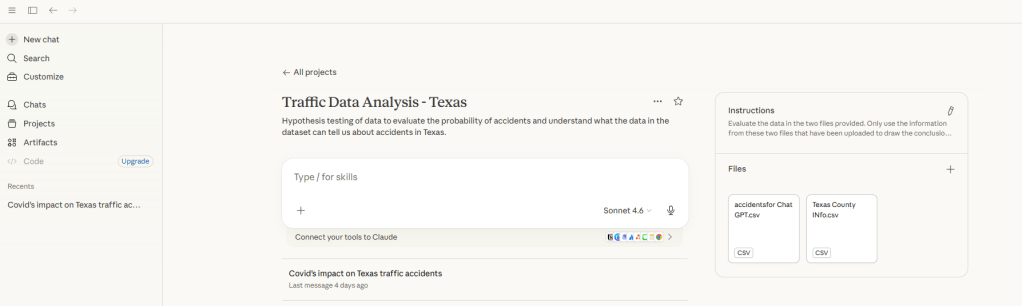
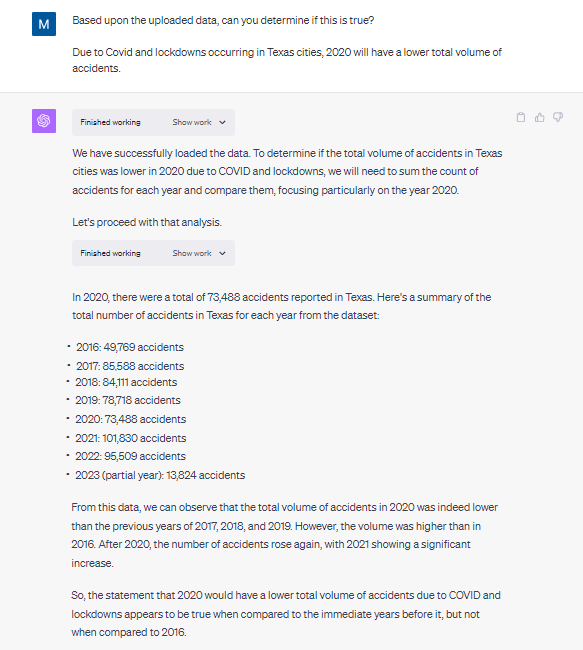
Plugging in the data that can be found in the “Raw Data” section of the Tableau dashboard, let’s try to enter the prompt and see what it comes up with. The full chat log can be found by clicking here.

Question is answered effectively, but doesn’t catch the anomaly

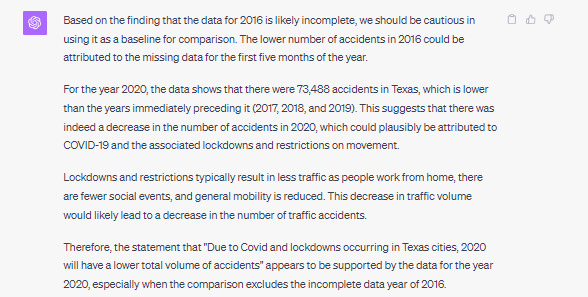
As you can see based upon the above prompt and response, Chat GPT arrived at the same conclusion we did with our Tableau dashboard with about 10% of the effort. No visualization, no pivot table creation and interpretation. Chat GPT did not catch the anomaly in the data however.

When asked to check for anomalies and re-analyze the data, the same conclusion we arrived at in Tableau and excel is generated by Chat GPT.

Hypothesis 2: We can clearly see higher volumes of crashes during rush hour in both urban and rural parts of the state.

For the first step in this process we have to identify whether a county is urban and rural. This is not identified in the core data set being used, but is readily available in the US census information. We’ll come up with a rough rule that any county with a 2020 population of less than 50,000 is rural.

Tableau and Excel

Performing this one time analysis in Tableau and Excel was relatively easy.

1. Upload county information to the Tableau dashboard and joined with existing excel data. (~5 minutes)

2. Create LOD and calculated fields to provide the variables (~15 minutes)

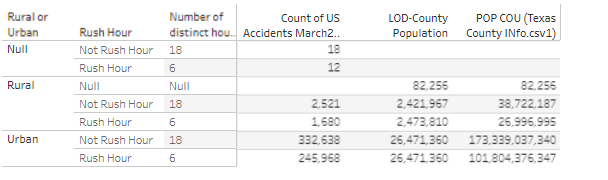
  • I had to create quite a few calculated fields and an LOD expression to handle the join between the accident data and the county information (different granularity).
Provides the number of hours, count of accidents, and population

3. Saved the data to excel (~2 minutes)

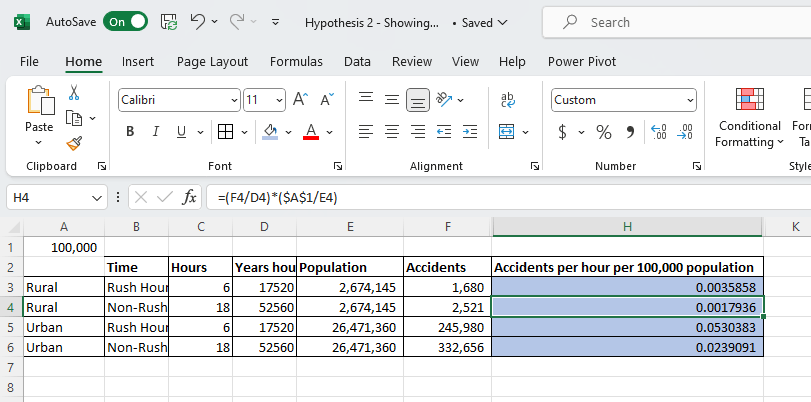
4. Perform the calculation myself using formulas (~5 minutes)

Beautiful Excel

Chat GPT

We start by uploading the two datasets, and having Chat GPT featurize the county information to identify whether a county is urban or rural. After that, it’s as easy as asking the questions and getting the response. The data is already joined together correctly using the county column from both datasets.

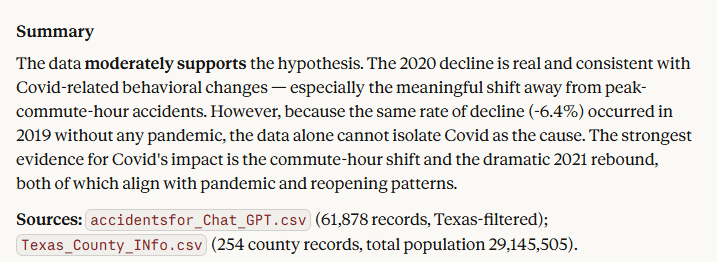
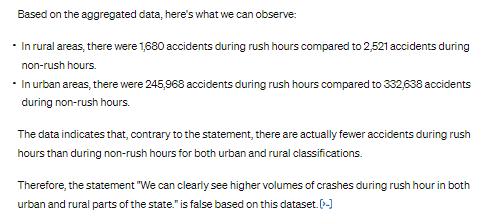
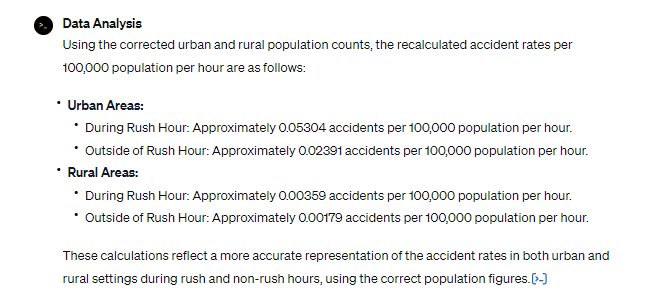
The original response given by the tool is below. Which is too straightforward of an interpretation, as it does not take into account population numbers or the duration of rush hour (6 hours out of the day). We need a different metric than what was provided by Chat GPT.

Too simple, and not doesn’t account for other variables

Let’s re-prompt with average accidents per an hour for 100,000 in population.

While this would be a seemingly straightforward request, unfortunately Chat GPT did not perform well. It took about 30 minutes to get Chat GPT to use the right numbers and make the right assumptions. When you compare something like excel with Chat GPT for a simple model where assumptions need to be made, there’s no doubt in my mind that excel is more efficient. In order to troubleshoot Chat GPT and steer towards the correct answers, I had to spin up an excel.

The correct calculation…finally

Conclusion:

Chat GPT continues to prove effective for basic exploration of data, and even joining datasets together for more complex analysis. When it came to the assumptions made for the calculation, it did however miss the mark and have to be reinforced multiple times, and in some cases corrected. While we eventually arrived at the right conclusion, I found dealing with these issues in Chat GPT uncomfortable. It was hard to tell how much more time it would take to get Chat GPT corrected due to sometimes having to correct the same issue multiple times.

Appendix

Chat GPT for Data Analysis

AI is everywhere nowadays. It is going to replace all the office jobs, and make Google obsolete. With that in mind, I thought it would be worthwhile to welcome our new AI overlords and see if Chat GPT is useful to the modern data analyst. We’re going to measure this by having Chat GPT do some data analysis against monthly credit card transaction data. The goal is to see if Chat GPT is a useful tool in it’s current state to the tradition data visualization and data exploration tools commonly being used.

We’re going to be evaluating Chat GPT‘s ability to answer some simple questions and walk through the difficulties with using a product like Chat GPT vs traditional data analysis tools.

The Data

To start off with, I uploaded credit card transaction data from Chase. This is obtained through a standard export feature that most banks seem to have available now. The table has the following information:

  • Transaction Date: Date the transaction occurred at the point of sale.
  • Post Date: Date the transaction was reflected on the account.
  • Description: Usually contains the business and other information. Different for every vendor.
  • Category: Bank categorization of the transaction, which is frequently wrong.
  • Type: If it was a purchase or payment on the credit card. Payment being reducing the outstanding balance.
  • Amount: The credit/debit amount for the transaction.
  • Memo: Always blank for my credit card at the moment.

Loading to Chat GPT

Using Chat GPT at chat.openai.com, there are two options to loading the data. We’ll be trying out both, starting with the Free Tier.

  • Free Tier: Upload the data in the chat window, using Chat GPT 3.5.
  • Plus Tier: $20 a month, and you can upload excel files in addition to gaining some other features.

Free Tier

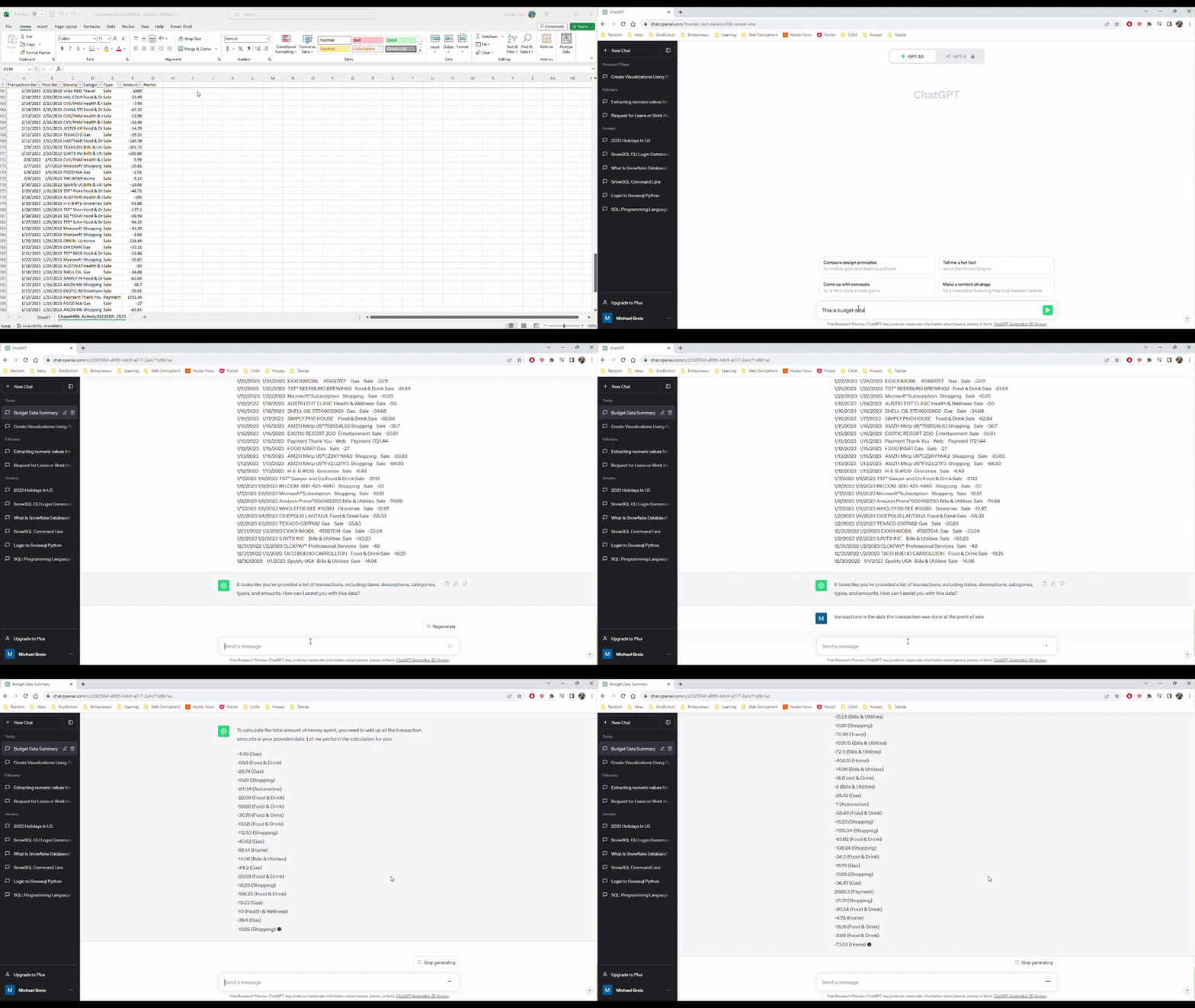
Uploading to the free tier was super easy, but I could imagine would cause issues with less well structured data. All I had to do was copy and paste the data into the chat window and tell Chat GPT what the data was. Looking at the video, you can see the upload is super simple. However, we run in to the first problem. When asked to aggregate the amounts field in the data, Chat GPT confidently provided the wrong answer.

Uploading and describing data to Chat GPT

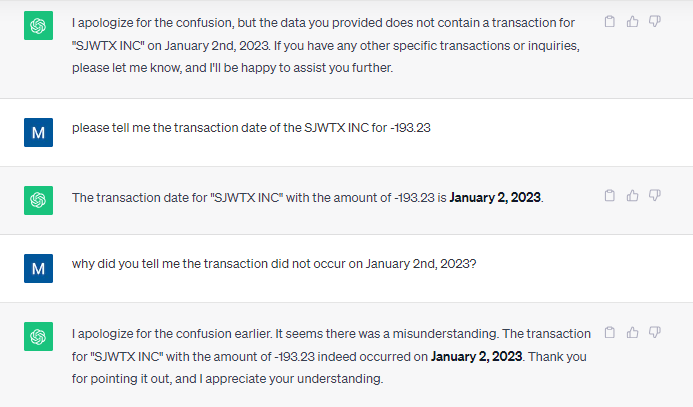
Providing the wrong answer on the first pass isn’t great, but it isn’t a dealbreaker. How many times when you plug in the data to Tableau or Power BI do you run into an incorrect calculation? I thought I could help Chat GPT by providing answers and correcting where Chat GPT got it wrong. Unfortunately, that did not help.

At this point, I’m going to throw in the towel with the free tier. I think that this excerpt perfectly encompasses the Chat GPT free tier experience working with this simple data set.

How can you trust a data analysis tool that does this?

Chat GPT Plus

Using the Chat GPT plus tier allows the use of the Advanced Data Analysis feature which is currently in Beta (as of October 18th, 2023). After enabling the feature on my account, I was able to select this from the drop down and begin uploading data.

Uploading the file was super simple from a UI perspective, but there are a couple issues that would prevent me from adopting Chat GPT, or replacing Tableau entirely:

  1. File size limit of 100 MB
  2. You have to trust Open AI to safeguard or delete any data uploaded

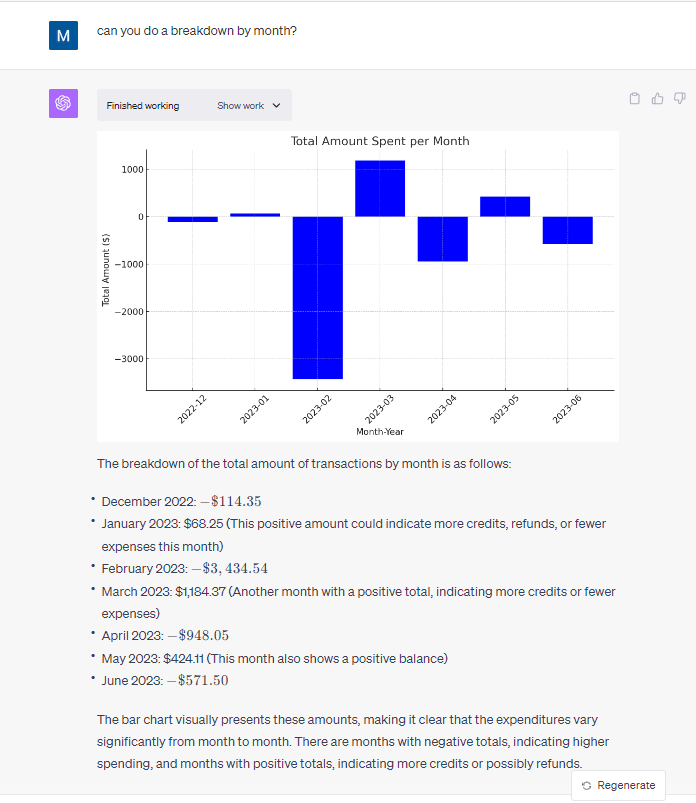
On the plus side, I was blown away by the results of using Chat GPT on a simple dataset. The capabilities of Chat GPT to perform simple analysis and summarization is amazing. Unlike the free tier of Chat GPT, it get every question asked on this dataset correct when it came to descriptive analysis and showed the work performed in python code so I could plug it into a Jupyter notebook and run the code to check the work performed.

Thorough and correct results after uploading the file

Conclusion

For those folks who regularly extract small datasets from a dashboard, database, or application, this could be an extremely useful tool to supplement the tools already common in enterprises for analysts. Pay $20 dollars a month to automate and save time doing ad-hoc analysis. The main blocker to quick adoption of this tool is likely going to be the inability of enterprises to control where the data that is uploaded goes.

Building a Serverless Data Ingestion – End Result

In this final post, we’ll go over the final implementation of this serverless data ingestion pipeline. What is the result of all the effort put forward to build this serverless data ingestion process? I think the best way to break this down is to compare what we were originally aiming for, and what was implemented. Below you can see diagram that was created in the post outlining the overall architecture.

Pictured on the left is what was originally proposed. On the right, is what was actually implemented. Turns out the implementation pretty much stuck to the plan, with the additional enhancement of using an event to kick off the Lambda functions. This allows for everything to kick off in the appropriate sequence once a file is placed in our “ingestion-bucket-11.15.2021”.

The usage of AWS events to kick off Lambda functions was extraordinarily easy, and there’s plenty of good documentation to get started. The S3 event passes through all the metadata needed to parameterize and operate the pipeline in JSON. The documentation from Amazon, makes it super easy to access and use when setting up your Lambda functions.

Below you can see the actual code executed in the Lambda function. Notice that the variables bucket_name and file_name are both retrieved from the event.

from classes import ingester as ing
from classes import forstaparser as fp

def lambda_handler(event, context):
 bucket_name = event['Records'][0]['s3']['bucket']['name']
 file_name = event['Records'][0]['s3']['object']['key']
 target_bucket = 'landing-bucket-11.15.2021'
 upload_table = 'landing_table'
 source_type = 's3'

 if bucket_name == target_bucket:
  upload_file_name = ing.ingester.convert_object(None,bucket_name,file_name)
  raw_logs = fp.parser.read_logs(None,source_type,target_bucket,upload_file_name)
  fp.parser.dynamo_landing_load(None,upload_table,raw_logs,file_name)
 else:
  landing_ingester = ingester.ingester()
  landing_ingester.copy_bucket(bucket_name,target_bucket)
  #test_parser.t_parser()
 print("Completed")

Put simply, the function does the following. First it receives the event metadata, parses through the JSON, and obtains the bucket name that we want to transfer the files from. Notice we can point to any bucket, and it will always drop the file into ‘landing-bucket-11.15.2021’. Using the event metadata means I can reuse this Lambda function as often as I want to create a central dumping ground for staging data to be loaded.

Second, once files are put into ‘landing-bucket-11.15.2021’ another event kicks off. This event cleans the data, ensuring proper encoding (UTF-8), and then loads the data into our DynamoDB landing table. All in all pretty simple.

Below you can see everything running in action.

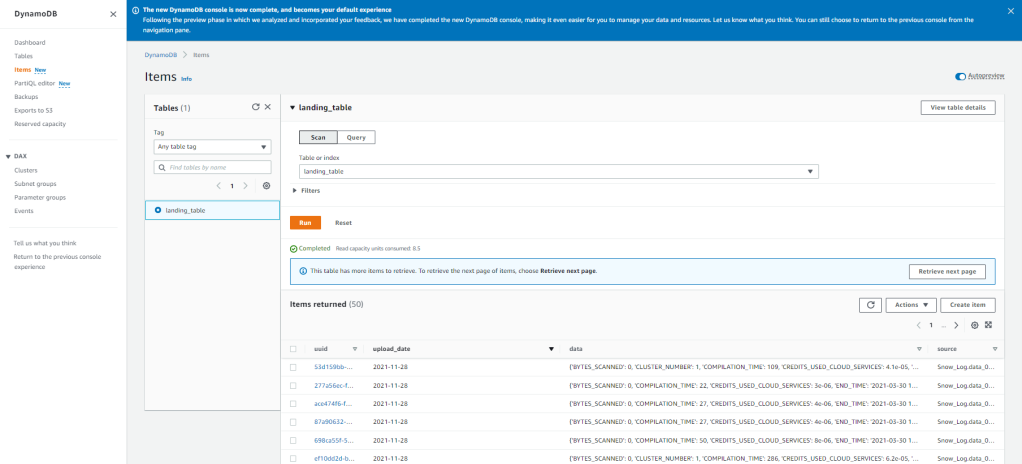
As we can see above, the files were automatically copied, and for posterity’s sake, we can check the cloud logs to see we have a 100% success rate in the last hour. Looking at the below we can see the result of 100% successful executions for our first Lambda function.

The next step is automatically kicked off whenever an object is PUT into the ‘landing-bucket-11.15.2021’ and loads the data into DynamoDB. With the current setup, we can see the data uploads successfully and the data is now available in DynamoDB to be ingested into whatever processes/analytics we want! The best part being that once this is setup it is automated, and auditable going forward due to the tools AWS offers.

In order to build this, it may not have seemed like a long journey. But keep in mind, in the process of building this little project out I’ve had to pickup and learn quite a few tools. Docker, Lambda, S3, IAM, Python, Boto3, and a few more tools which we’ve covered in the previous posts. If I need to do this again, it’ll be much simpler based upon what I’ve learned.

Thanks for reading along!

Building a Serverless Data Ingestion – Difficulties

This is part three in a four part series on implementing a serverlessJSON based approach using AWS for data ingestion

Outlining the architecture and development process, I glossed over all of the problems and issues that had to be overcome along the way. The majority of my work life and free time isn’t spent using Python, so the majority of the issues confronted are likely to be straightforward for more experienced developers. Doing something new though, I did run into a few issues which were interesting and warrant at least jotting down for my own memory.

  1. Learning about the Docker File
  2. AWS Lambda events and layers
  3. Learning Boto3

Learning about the Docker File

When starting off with Docker, I was throwing things at the wall and seeing what stuck. Originally, I was using a standard Ubuntu image to do testing from for the final function which would be up in AWS Lambda. This was not the right approach in retrospect. I should have started with the amazonlinux image that is readily available on Docker Hub. Once understanding how to create the Docker File from that image, the next step was understanding how to get the code into the container.

The first instinct I had was to create the Docker File in a specific subdirectory of the code base. I’d have a structure like follows:

The entirety of the GitHub repo is Forsta, with subdirectories serving specific purposes.

  • Database: Contains code to create the DynamoDB database tables, and other configurations.
  • Parser: Has the code for moving the data between S3 buckets and into DynamoDB from S3 buckets. Additionally, it contains functions to clean the data and create a primary/unique key for the DynamoDB table.
  • Test: Contain all unit tests or end to end tests I would need to create. It ended up containing the function executed by the AWS Lamdba function, which needs to be rectified in the future.
  • Docker: The final directory was aiming to be Docker, which would have contained a repository of different Docker Files which would be used for different Lambda functions. That’s where I ran into some issues with pathing.

Based upon where the Docker File was in this path, I was unable to easily use the “add” command which made me unable to pull the required files into the Docker container to test my code. My recommendation, have one main area which the Docker File lives in the topmost directory of your repo (in this case, right below Forsta), and you can easily get all of the code you need into the container.

AWS Lambda

This was my first time using AWS Lambda, and it was a bit bumpy at first. My original approach was to create a class, which I would then call in Lambda. While this was basically what the end result was, the route getting there involved some discovery/mistakes.

The first time I attempted to deploy code to Lambda, I just had the class, zipped it up, and tried publishing the Lambda function. In order to use these published classes, I didn’t think through the fact that something would have to call the function, other than my test scripts.

The second time I published a function, one of my test scripts which worked in the container, to run the desired code to see if it worked. Again, this did not work out. After doing some further research, I found that the AWS Lambda function requires an event to kick off the execution of the desired code. In retrospect, this makes complete sense.

The third attempt I got right, after looking a this great tutorial. The key is to create a wrapper which accepts the right events from the AWS environment which kicks off the underlying code I was looking to execute. You can see the repo here with

from tests import test_parser

def lambda_handler(event, context):
    test_parser.t_parser()
    print("Completed")

All of this could have been averted by reading the documentation before trying to deploy. In order to get to this point, I had to refactor the directory structure a couple times (leading to code impacts), and deploy multiple times. Lesson learned, documentation is in fact worth reading.

Learning Boto3

Let’s start off with the basics. What is Boto3? Luckily, the Boto3 documentation has a simple overview on the landing page.

You use the AWS SDK for Python (Boto3) to create, configure, and manage AWS services, such as Amazon Elastic Compute Cloud (Amazon EC2) and Amazon Simple Storage Service (Amazon S3). The SDK provides an object-oriented API as well as low-level access to AWS services.

– Boto3 Documentation

This library underpins everything that was done as part of the effort. Really, the complications came in the form of understanding how to get the data cleaned in a format that would be useful to have in a DynamoDB table. Trying to get the data to where I needed it was easy.

This can be seen here primarily in the ingester class located here and pictured below.

import boto3
import time as time
import gzip
import json
from io import BytesIO

class ingester():
 #def __init__(self):
 #print the name of all the buckets the configured account has access to
 def s3_list_buckets(self):
  for bucket in boto3.resource('s3').buckets.all():
   print(bucket.name)
   response_dict = boto3.client('s3').list_objects(Bucket=bucket.name)
   print(response_dict.keys())
   #ensures bucket has content before trying to pull content info out
   try:
    response_dict['Contents']
   except:
    print('No objects in ' + bucket.name + ' exist.')
   else:
    print(response_dict['Contents']) 
    objs_contents = response_dict['Contents']
    print(objs_contents)
    #unnecessary, good for reference
    #for i in range(len(objs_contents)):
    # file_name = objs_contents[i]['Key']
    # print(file_name)

# Read data file from S3 location
# Unpack/Unzip into JSON
# Load to landing bucket location
 def copy_object(self,source_bucket,object_key,target_bucket):
   target_object = object_key + str(time.time())
   copy_source = {
    'Bucket' : source_bucket,
    'Key' : object_key
   }
   s3 = boto3.resource('s3')
   landing_bucket = s3.Bucket(target_bucket)
   try:
    landing_bucket.copy(copy_source, target_object)
   except Exception as ex:
    print(ex)
   else:
    print('Success! Object loaded to: ' + target_object)
    return (target_object)

# turns the data contained in the s3 gzip compressed file to text document
 def convert_object(self,target_bucket,target_key):
   data = []
   s3_client = boto3.client('s3')
   read_object = s3_client.get_object(
     Bucket = target_bucket,
     Key = target_key
   )
   read_byte_object = BytesIO(read_object['Body'].read()) 
   raw_data = gzip.GzipFile(None, 'rb', fileobj=read_byte_object).read().decode('ASCII') #.decode('utf-8')
   s3_client.put_object(Body=raw_data, Bucket=target_bucket,Key=target_key[target_key.rindex('/')+1:] + str(time.time())+'.txt')

Looking at the convert_object function, you can see there was quite a bit of finagling needed in order to get the required data format and move the contents into my single landing bucket. This single bucket is where I’m storing all of my information, as outlined in the architecture. After doing this project, I realized the hard part of the library, just like anything, is learning how the different functions return the data and should be used in tandem to make a coherent solution. But I will say, the documentation is great and there are a plethora of resources/blogs.

Specifically, I’ll call out the following as a great place to start when looking to get something like this off the ground and into the cloud.

Building a Serverless Data Ingestion – Development Process

This is part two in a four part series on implementing a serverlessJSON based approach using AWS for data ingestion

  • Architecture: What’s the approach?
  • Development Process: How did I set up my environment that was effective and efficient for developing?
  • Difficulties: What issues came up, and how did they get resolved?
  • End results: Does this architecture achieve the goals that it set out to achieve?

One of the biggest blockers to getting started with building out the serverless data ingestion was figuring out the best way to develop code which could be deployed on the different AWS services being used. Traditionally I’ve deployed code to a central server or cluster from which everything could be tested and promoted. Deploy to a server, test on the server, then move to a production server or location on the same server where production files/code live. What happens when there is no server?

Docker

I’d put off learning Docker for quite a while due to the complexity introduced when running Docker, but in this case, being able to replicate the environment Lambda functions run on was the first time Docker clicked for me. Loosely following the excellent tutorial from Nicola Pietroluongo located here, I was able to stumble my way through creating my first dockerfile, resulting the below code which can be found here on GitHub.

FROM amazonlinux
RUN yum update -y
RUN yum install python3 -y
RUN yum install nano -y
RUN yum install zip -y
RUN yum install unzip -y

#AWS CLI Installation
#RUN curl "https://awscli.amazonaws.com/awscli-exe-linux-x86_64.zip" -o "awscliv2.zip"
#RUN unzip awscliv2.zip
#RUN ./aws/install

#create working directory
ADD . /user/src 
RUN pip3 install boto3 -t /user/src/Forsta/Parser

#v1
#Pull base image
#FROM ubuntu:latest

#Installation packages
#RUN apt-get update
#RUN apt-get install -y curl
#RUN apt-get install -y unzip
#RUN apt-get install -y python3
#RUN apt-get update
#RUN apt-get install -y python3-pip
#RUN pip3 install boto3
#RUN apt-get install nano

#AWS CLI installation
#RUN curl "https://awscli.amazonaws.com/awscli-exe-linux-x86_64.zip" -o "awscliv2.zip"
#RUN unzip awscliv2.zip
#RUN ./aws/install


#Add's current directory into container home directory.
#ADD . /home

While tinkering around with different approaches to the code, I was able to add or remove dependencies from the environment as needed (as you can see with all of the commented out packages in the above). I was constantly creating and destroying the environments running two or three commands in my local command line.

When developing on EC2 or other server environments, dependency management has always been a pain and has at times resulted in a bloated environment (slower, higher maintenance costs, etc.). This is due to to the packages that are unnecessary or never used are installed in the environment because they may have been used while developing the code, found to not be the best solution, but not deleted from the server environment. Using Docker was awesome due to the fact that each time I was iterating my code, I was spinning up the environment through the Dockerfile and commenting out the dependencies that weren’t needed, preventing this issue.

Deployment

The development of the code was all done using visual studio code, and once ready for unit tests, the Dockerfile above would be run. The actual python code, along with all dependencies are all placed in the container at the directory location /user/src/Forsta/Parser, as specified in the Dockerfile. If the code resulted in the desired outcome, I then Zip the files along with dependencies.

This Zip file is what we wanted to eventually get into a Lambda function. Once this Zip file was present in the container I spun up, the file was pulled down to my local machine, then uploaded through the AWS Management Console (this could all be automated) and ready to execute since I’d already setup the correct account through IAM.

The actual code getting executed is located here, and shown below.

from tests import test_parser

def lambda_handler(event, context):
    test_parser.t_parser()
    print("Completed")

Code Repo

Most people are familiar with Github at this point. I used GitHub Desktop to maintain the code base entirely on the main branch. Nothing fancy here, as I was working alone on this and able to do the quickest/fastest solution. As a side note, one of the items worth mentioning is that I picked up a code repo from a few years ago to start this (as shown below). I’ve had multiple computers and storage mediums die since then, but being able to pickup the repo and see the history was super useful.

Even if the code had been stored on my local C drive, who knows if I’d have been able to find it or remember why certain things were done. Being able to go through the version history and see the files between commits, helped greatly in refreshing and picking up the code to create these pipelines.

Dynamo DB

From an AWS standpoint, nothing too special. Everything was setup manually, but this could all be automated. Just like the deployment process. I did script out the creation of the landing table as shown below and available in the repo here.

import boto3

def create_landing_table():
    dynamodb = boto3.resource('dynamodb',region_name='us-east-1')

    landing_table = dynamodb.create_table(
        TableName='landing_table',
        KeySchema=[
            {
            'AttributeName': 'uuid',
            'KeyType': 'HASH'
            },
            {
            'AttributeName': 'upload_date',
            'KeyType': 'RANGE'
            }
        ],
        AttributeDefinitions=[
            {
                'AttributeName': 'uuid',
                'AttributeType': 'S'
            },
            {
                'AttributeName': 'upload_date',
                'AttributeType': 'S'
            }
        ],
        ProvisionedThroughput={
            'ReadCapacityUnits':10,
            'WriteCapacityUnits':10
        }
    )

    print('Table Status: ',landing_table.table_status)

In the future, I’m hoping to parameterize the creation of tables as needed. Due to this being a document database, all that needs to be defined is the creation of the unique identifiers. Eventually, I’ll parameterize the creation of the sort keys as necessary for performance.

With all the above, you now have an idea of how I developed on my local machine, deployed code to Lambda, and setup my final landing table in DynamoDB. If you missed the first post in the series which provides an overview of what I was trying to build, you can find that post here.

Building a Serverless Data Ingestion – Architecture

Data and analytics always seems to start with the same problem. How do get the data where it’s needed so that we can start getting insights? The problem isn’t getting the data from point A to B, but doing this in a way that is easy, cost-effective, reliable, and appropriately scalable for the use case. With the rise of the different cloud providers and their toolsets, I thought it would be fun to give a swing at implementing a serverless, JSON based approach using AWS.

This will be series of articles which will be broken down into the following:

  • Architecture: What’s the approach?
  • Development Process: How did I set up my environment that was effective and efficient for developing?
  • Difficulties: What issues came up, and how did they get resolved?
  • End results: Does this architecture achieve the goals that it set out to achieve?

Diving into the architecture plan is outlined below. We’ll go into each of the boxes in detail, but first let’s frame the use case for this project:

I want a solution that can be used in my personal data projects, can scale up to N data ingestion pipelines as needed, and is cheap to operate.

With that goal in mind, the solution uses technologies that support these objectives:

  1. Scalability: All of these technologies can scale from gigabytes to terabytes of data automatically, being fully managed services. Additionally, the Lambda python functions that have been written are entirely serverless.
  2. Cost: Cost is all based upon usage. So if nothing is used, all I’m paying for is storage costs for the storage of persistent data. DynamoDB’s on-demand capacity based pricing charges $.25 per a Gb, so using this service as a landing location before moving into Snowflake is extremely affordable considering the budget.
  3. Upkeep/maintenance: Everything but the data layer is server-less, so no EC2 to keep up. No patching or server status’ needing to monitored. Or the worst case, no script kitties entering into an unprotected servers in my VPC that require me to start over from scratch.

So pretty straightforward from an overall technology standpoint right? The other item to note is how the Lambda functions are written in the python. The idea behind the S3 bucket structure is to funnel all of the data for ingestion into a single location, and ensure that the data is in a similar format to be landed in Dynamo DB.

With the Lambda functions in the GitHub repo here, we ensure that there is a key present that uniquely identifies the exact upload record and it’s origination so I can reuse the upload process for as many different feeds as we want, from whatever buckets we want. Completely configurable to point to a bucket you own, or someone else’s bucket, you can and land it in your own bucket.

Here’s one of the functions demonstrating a super straight forward movement/copy function to get our data to a single ingestion bucket:

# Read data file from S3 location
# Unpack/Unzip into JSON
# Load to landing bucket location
 def copy_object(self,source_bucket,object_key,target_bucket):
   target_object = object_key + str(time.time())
   copy_source = {
    'Bucket' : source_bucket,
    'Key' : object_key
   }
   s3 = boto3.resource('s3')
   landing_bucket = s3.Bucket(target_bucket)
   try:
    landing_bucket.copy(copy_source, target_object)
   except Exception as ex:
    print(ex)
   else:
    print('Success! Object loaded to: ' + target_object)
    return (target_object)

After this, it’s a matter of moving the data along the layers with our Lambda functions, manipulating the data as necessary, and ending up with that data inside of DynamoDB. The idea here being, if we build out the required functions in Lambda, these core python classes used in the Lambda functions to load the data for as many sources as we want, as long as they are similar.

As an example, do you have customer data being sent from many different sources, slightly differently? Well we can get that data into a single DynamoDB table to load into our relational Snowflake database for analytics, or access the data directly using DynamoDB’s API. All of the data in this example is landed in a single table, and can be identified by source for individual processing/analytics.

Although this all sounds straightforward, developing this architecture was truly easier than other side projects/tinkering I’ve done due to the tools that are available to develop Lambda functions and interact with AWS infrastructure. In the next section I’ll talk about the tools I used, how code was deployed, and few other relevant items that made all of this easier to do than expected.

Getting Started – Snowflake and S3

Snowflakehas been quickly throughout different organizations and geographies over the past few years. With exponential growth each year when looking at their customer base (~100% growth in 2019 fiscal year) and revenue (257% increase year over year in 2019). There has to be something amazing behind this product besides great marketing right?

With that in mind, I figured it would be a good use of time to take a look. One approach to take when assessing new tools is focusing on a few different use cases and evaluating how it stacks up against the competition. When looking at data and analytics tools, one of the first questions always is “can I get the data were it needs to go quickly?”. In this case, we’ll be looking at loading a basic pipe delimited data set used to populate an old Tableau dashboard from an S3 bucket into Snowflake.

For the purpose of this blog post we’re going to focus on bulk loading. The reason for this being that the most basic use case for many data warehousing initiatives are going to be based on nightly loads or a similar non-continuous schedule. Additionally, we’re going to focus on using an S3 bucket which is external to Snowflake for this attempt.

  1. External Tables
  2. Bulk Loading
  3. Continuous loading

Step 1: What data to load?

In this case, I grabbed the pipe delimited text file and dropped it into an S3 bucket. The the complexity will come in the form of managing my VPC and transferring the data from my S3 bucket to the Snowflake’s internal S3 storage.

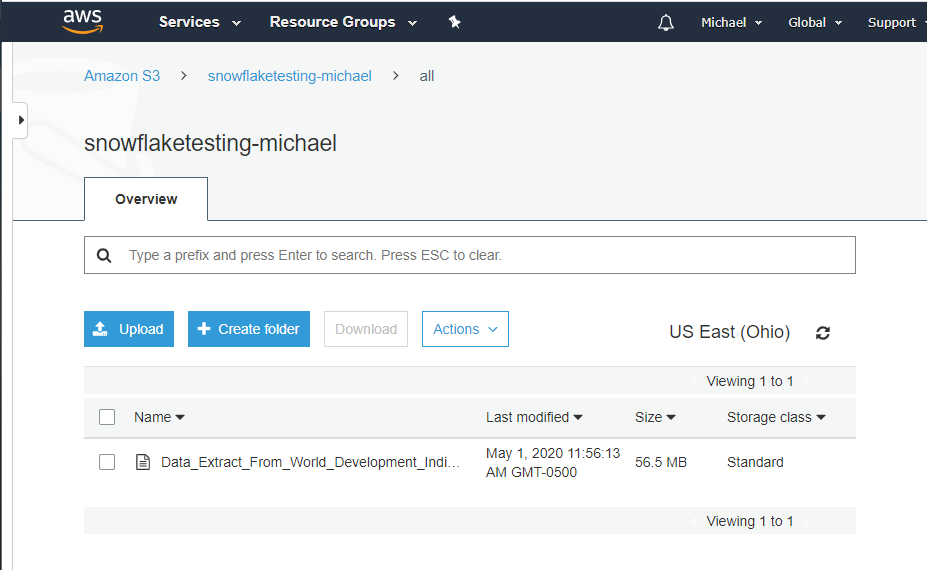
AWS Data

File loaded in Snowflake…Note the size of the file in S3.

Step 2: Grant Snowflake Access to S3

Snowflake exists outside of my main AWS account’s VPC so I need to grant my Snowflake account access to my S3 bucket to copy the data into Snowflake. One important thing to note, is that it is definitely a good idea that you have your S3 data in the same region as the Snowflake instance so that you’re data/traffic stays internal to the AWS network (non-public).

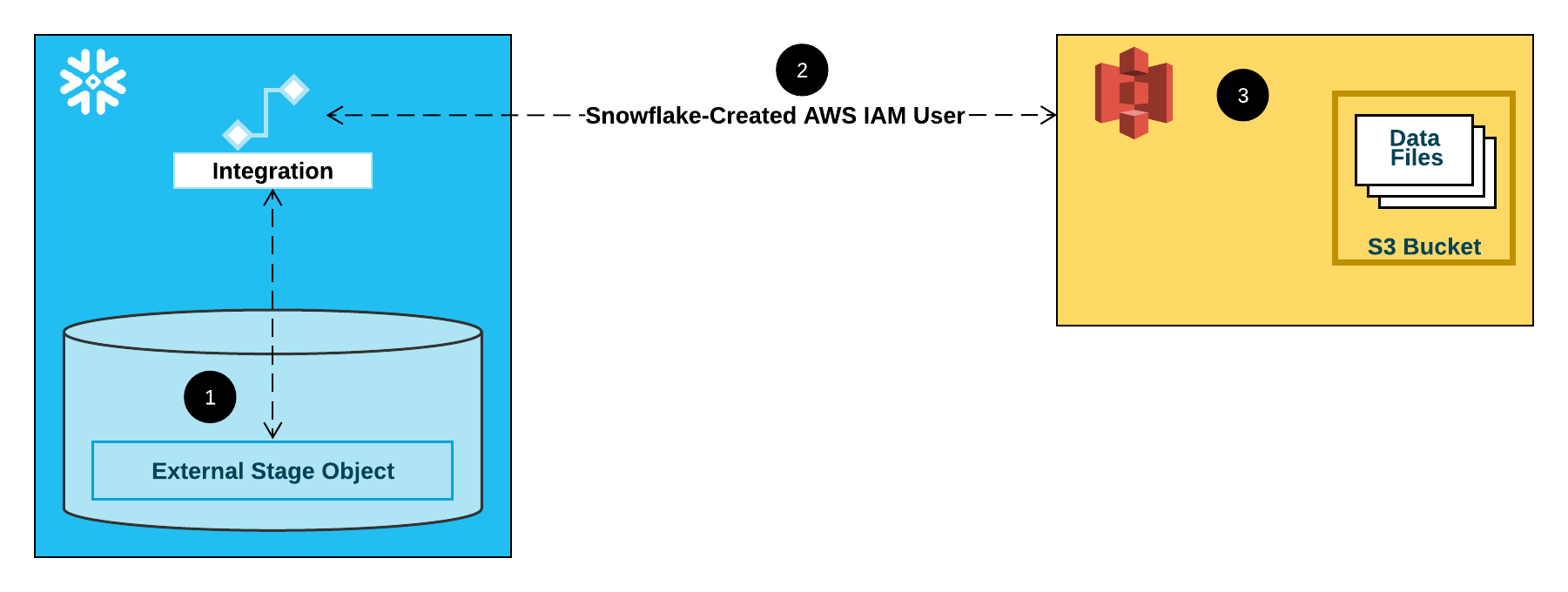
storage-integration-s3

Integration flow for S3 Stage.

Per the Snowflake documentation there are three main options for performing this piece of work. The recommended option is to configure a Snowflake Storage Integration so that we can avoid credential requests while trying to get data loaded.

The creation of a policy on my AWS account is the first thing that’s needed.

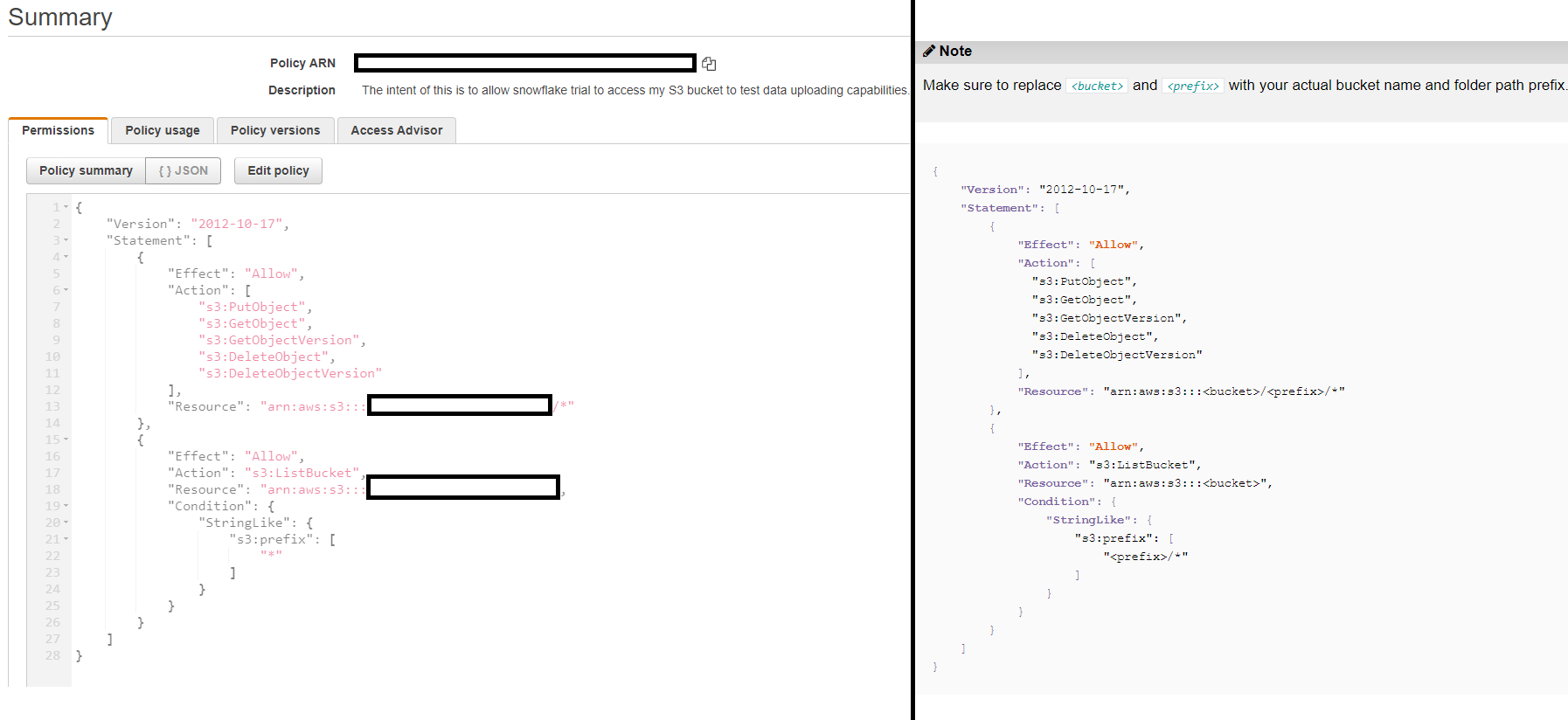
S3 Policy

On the left is my policy, on the right Snowflake’s standard recommendation for the policy.


Luckily, the process to do this is straightforward. Snowflake goes as far as providing the exact JSON that needs to be pasted in, so it’s relatively easy. The main exception between what Snowflake recommends and the policy I created is the use of the wildcard “*” in the s3:prefix member. It’s fine for my prototyping use case, but if you have more than 1,000 objects in the bucket, a “*” will cause an error when trying to read/copy data to Snowflake.

The second item that needs to be completed is the configuration of an IAM user which will allow your Snowflake account to access the specified S3 bucket. This is the same process used to allow two separate AWS accounts to access one another’s resources because, well, that’s exactly what’s occurring with Snowflake being hosted on AWS. Detail can be found here, but at the end of the day you’ll end up with an IAM user with the policy we created earlier assigned to the account.

Step 3: Setting up a Snowflake Integration

The creation of the integration is what we were striving for all along. The reason for this is that by creating an integration, we have a way to access our S3 buckets without having to log in or supply credentials in Snowflake. If we don’t create this integration, then each time data is loaded credentials will have to be supplied.

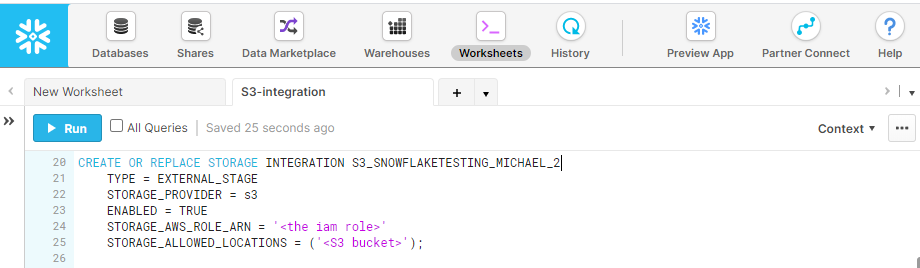
Snowflake Integration

Integration creation which will be used to create Stages.

Step 4: Create the Stage

Finally, we have the ability to connect to our S3 bucket from our Snowflake account. We can now specify the Stage that’s needed in Snowflake to actually load the data from the S3 bucket into our Snowflake. There are many options to customize the stage, but for this basic example I know that I have a text file format with “|” as a delimiter and a header row.

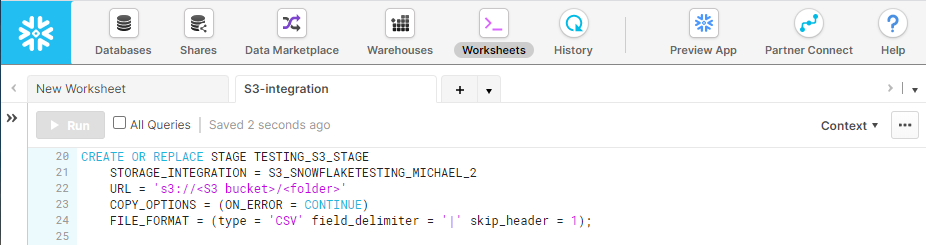
Snowflake Stage Creation

Simple stage creation for loading CSV formatted file.

Step 5: Create the Table

Pretty straightforward. We need somewhere for the data to live once copied into Snowflake from S3. Everyone should be familiar with creating a table using standard SQL. One of the great parts of dealing with Snowflake is the auto-indexing and partitioning right out of the box. So I used the most basic DDL to ensure no data is dropped or skipped in loading due to data type mismatches.

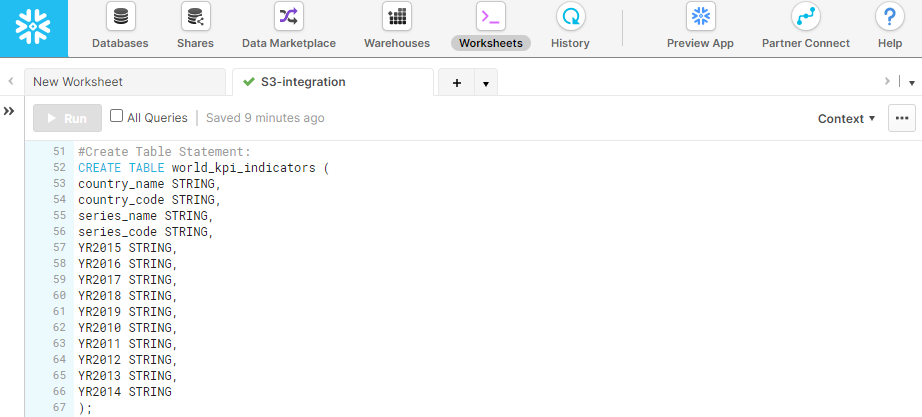
Snowflake Create Table

DDL for table creation, based off the structure of the CSV. All String datatypes for ease of loading.

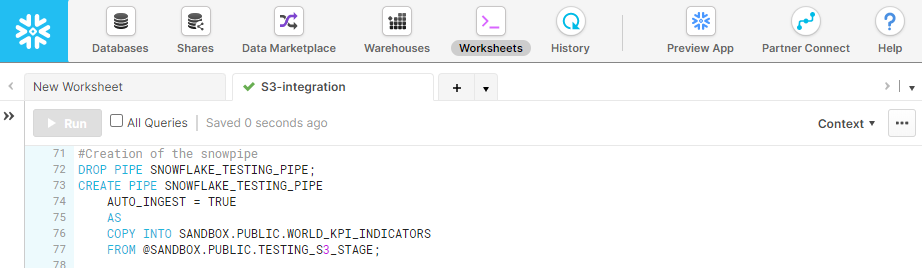
Step 6: Create the Snowpipe

The final step is to get the data loaded from our S3 to Snowflake’s internal S3. This is done through S3, and involves the final step of creating the Snowpipe for loading the data.

Snowpipe Creation

Creating a Snowpipe that automatically loads the data upon creation.

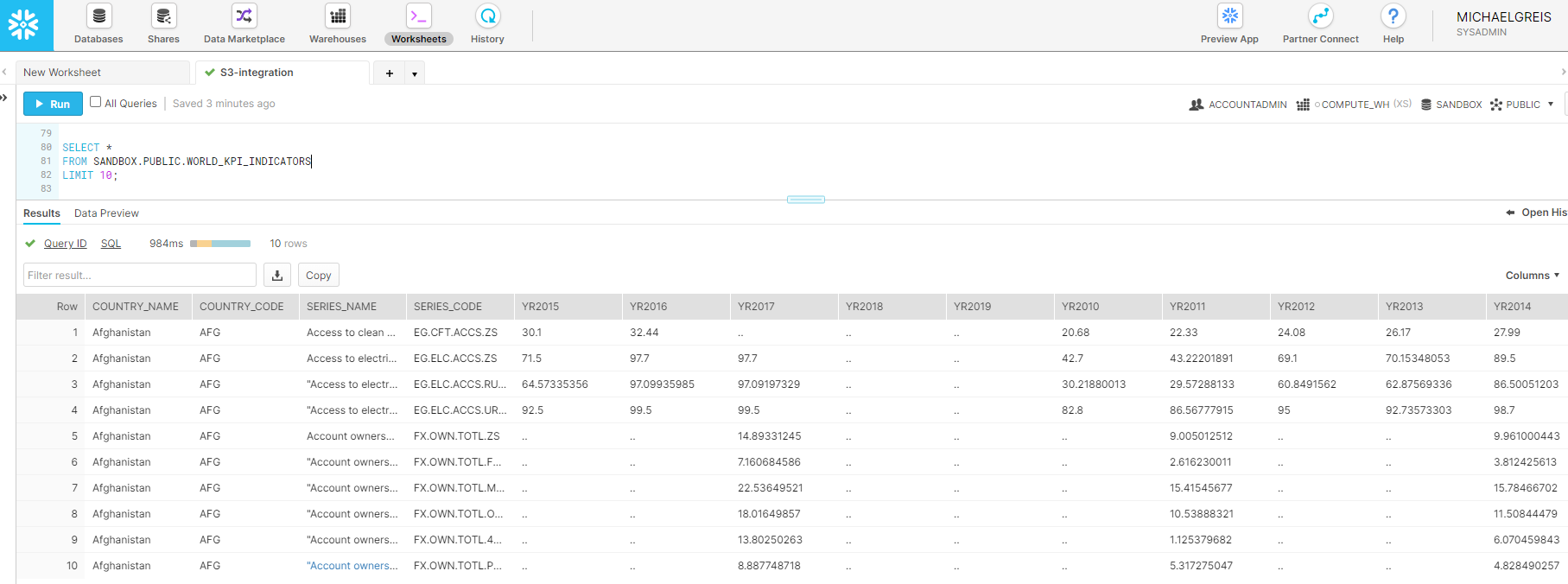
Final Outcome:

Query Output

Our data has landed!

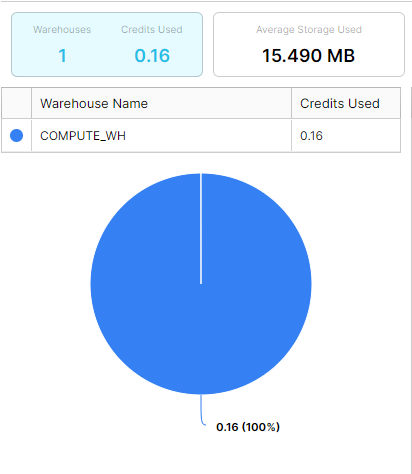
As we see when running a query against our table, the data is now present in Snowflake and available for querying. Additionally, the file that was loaded into Snowflake still exists in our S3 bucket for use in any QA or validation that we want to perform. In our final state, we can also see that Snowflake automatically compressed our data from over 50MB to 15.49MB without any manual intervention.

Snowflake Storage Volume

With automatic compression, the file now takes about ~30% of the storage space that the raw file does on S3.

Going forward, we’ll be exploring some more interesting/impressive capabilities of Snowflake. But starting here, you can see the ease of use, going from no infrastructure to having data feeding into a enterprise scalable data warehouse in less than a couple hours.

Re-establishing a Broken Cloud

This week, I cracked open Tableau to log into my Amazon RDS instance and noticed that the connection wasn’t working. Logging into the AWS console, my AWS RDS instance had disappeared (along with all the data in it). On perusing my emails, I noticed that I had an unpaid bill in my inbox from Amazon from ~1 month prior. So…along with the instance no longer running, I had lost all data contained which I had been collecting over the past 3 months which is more than slightly disappointing.

This does present an opportunity though. My EC2 instance is still running, and has been trying to push data to a server that no longer exists, meaning I need to set the RDS instance backup. This was an opportunity to document setting up a new RDS instance on AWS from scratch, with all necessary users, objects, and privileges and document how long it took.

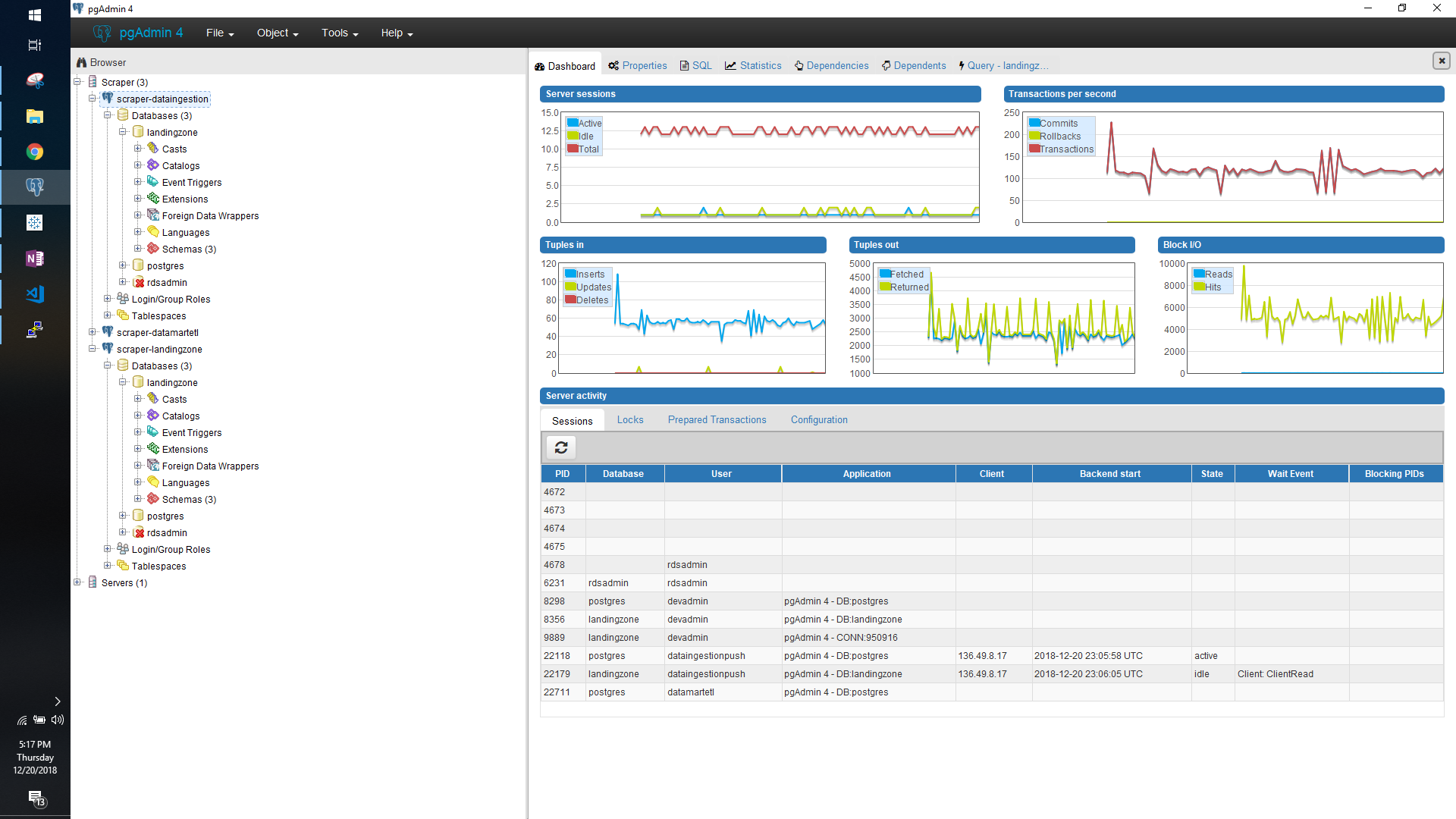
Here’s the process form start to finish;

Start: 4:12 pm

First step, logging in and getting the instance created. You’ll notice during this step that I flip from free-tier to get more storage, then flip back to free-tier. Why pay more money to get increased storage I won’t need for a couple weeks? All I need to do to up the storage is change a configuration which will cause my RDS instance to be down for a couple minutes.

Second step, making sure security privileges are setup. After my first project a couple years ago, and getting my web server destroyed by a script kiddie, I now only open specific ports (which I should have been doing all along).

The third step. I should be able to login to the server using the account that I set up as admin. Once I log in, all I have to do is execute all the create scripts I have.

The way that I created the DDL for my tables and schemas means that I can copy and paste them into query window in PgAdmin4 and execute the scripts. You’ll notice I have a couple semicolon issues that I’ve resolved.

Finally, looks like everything has been created. Just need to validate that my different accounts can login to the server and have appropriate privileges, which they did.

Finish: 5:17 pm

successfully back up

Connections exist from my EC2. With no alteration to any code on the EC2 server!

This process did not include any alteration of the EC2 instance and allowed me to go from a web server scraping the internet and sending files into the ether (nowhere) to having a full database stood up with all objects. This was done in a little over an hour, and ~30 minutes of that was spent executing sql, copy and pasting sql into the query editor for execution, testing to ensure objects/configuration was successful, and fixing minor syntax issues. All of which could be automated away.

I was debating whether or not to get a personal server for my projects, but this in my mind firmly helps cement the cloud as being a better choice when it comes to infrastructure. Comparing to my experience setting up a local SSAS and SQL server instance, this took about 10% of the time and was extremely easy to get running.

From Nothing to Something (The Beginning)

As part of a personal project, which I’m managing (and actively working) here, I’ve decided to do a little write up on my approach, what I’m learning, and other technical things I’ve encountered. This is as much for my own memory, as it is in the hopes that I can help some others avoid the technical pitfalls that I have encountered.

The Product:

I’ve always been someone extremely interested in data, especially data that no one else is looking at. So, what is the logical place to go? The most accessible data is the data that is already out there for the grabbing. So…scraping.

What has no one else scraped, or at least scraped and aggregated AND displayed well? Game prices across different platforms. There’s aggregators for all different kinds of products (ammo, outdoor gear, etc.) but no one seems to have implemented one for games well, although they have tried.

With that goal in mind we are building a product for people to track game prices, and favorite games so that they no longer have to track news on multiple sites and check multiple web marketplaces for the best prices on games. This means we will be scraping Reddit, Twitter, and other news/social media sites, in addition to game marketplaces like Steam and Sony’s Playstore.

What I Hope to Gain:

At the end of the day, maybe we strike gold by building the coolest website and app that ever existed and people love. More realistically, I want to build a platform with which I can add data as needed for my own wants/needs. I want to become expert level  using certain libraries and frameworks, and be at a point where I’m not just a Business Intelligence and ETL developer but can develop all over the stack as needed with ease.

Also, I want to gain experience in setting up a highly performant, extensible, ETL platform off of which I end up with an app on a marketplace and at least one download. All of which will be done on a shoe-string budget. I can then use that platform to pivot and build any sort of data-centric application for whatever purpose/reason I want.

The Steps:

So, with all this being said, there are three main topics I will be writing about on a broad level.

  1. Writing scrapers with Python’s Scrapy library, which run 24/7 around the clock
  2. Writing ETL’s to a Postgresql database with near real time availability and using a budget AWS instance
  3. Serving up the data to end users using an open source tool

More updates in the coming days!

Data Day Texas 2017 – A Few Thoughts

Earlier this month I had the opportunity to attend Data Day Texas, and thought that it would be worthwhile to jot down a few thoughts. For those that aren’t aware of Data Day Texas, think of it as a gathering of nerdy IT people and Data Scientists. It was an interesting weekend with a wide range of topics that encompassed everything from machine learning algorithms to more approachable subjects like data dashboarding.

Graphs Are Here

There’s a reason that the keynote by Emil Eifrem was named “The Year of the Graph”. Looking at the popularity trend on db-engines.com, you can see a large gain in the

neo4j-popularity

Neo4j Popularity

popularity of Neo4j. Leading naturally to the question, so what?

I think the major winning point for graph databases, other than performance on certain types of data analytics, is that graph databases are defined with relationships between data. This is in opposition to the approach of the traditional RDBMS which requires explicitly defining the tables in the schema, with relationships as a non-required afterthought in most cases. This means that while constructing the database, what you are doing is explicitly defining the node (core piece of data) and the edge (relationship between nodes). This means that you are enforcing the relationships between data, as opposed to the structure of the data itself. This creates another level of abstraction between the end user and the data, which should make the data in the database more approachable. Oh, and if you haven’t guessed, graph databases are schema-less which is a plus in many cases.

Issues Are Similiar Across Companies/Technology

In particular, there were two talks that hit this point home. The first was given by Chris LaCava from Expero Inc. in which he discussed visualization techniques with graph databases. The second was the discussion of how Stitch Fix sets up their environment for data scientists to work by Stefan Krawczyk.

What’s the root of this? People want to use the tools that work and that they like. Chris LaCava discussed how to do visualization on graph databases. While graph databases can

dashboarding-design-process

Look familiar? From Chris’ presentation on graph database dashboarding

meet some cool use cases as far as data sets and real time analytics go, what was discussed was a  straight forward and common sense approach to dashboarding. Anyone familiar with Business Intelligence and dashboarding should roughly be following the above, or near to it.

Stefan‘s talk was all about using Docker to enable data scientists to use the tools that they want to use. The solution to the complaint that many of us in the industry have when we are locked in with a specific tool-set. The differentiation here was that Stitch Fix has done containerization at scale. This solves that problem by allowing each of their data scientists to run and operate on their own environment, with whatever tool-set they favor to deliver business value.

The Story is What Makes Things Interesting

The final point, which I’ve written about before, is that the story is what makes things interesting. The specific story presented at Data Day? The Panama Papers and how Neo4j was used to discover the unlikely connection that led to the downfall of a Prime Minister. That this was the best marketing tool that I have ever seen in regards to a database.
Having a database GUI that allows for easy exploration of the data natively? That’s a game changer.

This slideshow requires JavaScript.

Looking at the above, you can see a traditional RDBMS GUI (SQL Server Management Studio) versus Neo4j’s GUI. There’s a reason why people don’t pull up SQL Server Management Studio tools to tell a story. Having a database platform that can automatically tell a story about the data is an awesome approach.